Hello, friends, and welcome to Automation Academy! (?)
Hacking Your Task Workflow Series
This series will be looking at how to automate your project management and/or task flow! And not just for your job.
This hack solves an oddly specific problem I seem to have often. I’m always thinking of tasks, things I need to buy, writing ideas… The issue is that I’m not always in a place where I can (or should) get that idea to where it needs to go. I have a list of writing ideas, I have a shopping list, and – OF COURSE – I have a task manager. However, they’re not all in the same location. How do you direct them to where they need to go?
Enter: workflow hacking! This series will teach you various ways to automate getting tasks where they need to go. We’re starting with a simpler automation and will be working our way up to more complicated ones.
The Scenario
We’re starting with the shopping list! Something a lot of you probably have.
At my house, there are Amazon Alexas everywhere. It’s super easy to add items to the shopping list, but I don’t actually use Alexa when it comes to a shopping list. And let’s say I use Remember the Milk for my shopping list. (I don’t, but my app isn’t directly connected, so my automation is multi-step).

The Setup
What You’ll Need
- Access to the apps – Amazon and Remember the Milk (RTM) in this instance. You’ll need the premium version of RTM, too, if you want to use it for automation.
- Automation tool: Zapier, IFTTT, Make. For this hack, I’ll use IFTTT.
How-To
For most of this, we’ll be working in IFTTT. So head over there and log into your account.
- After you’ve logged in, in the upper right corner, click the create button

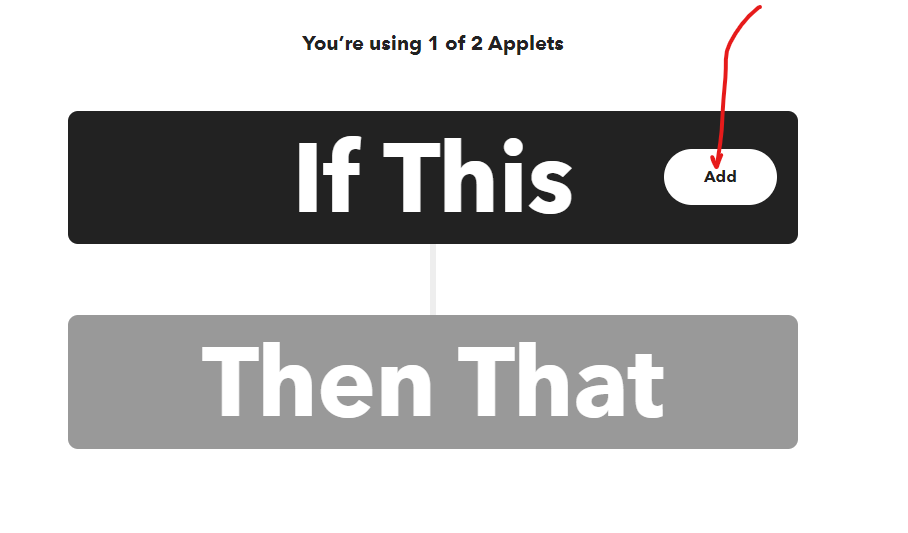
- For the “If this” part, click on the Add button and find Amazon Alexa.
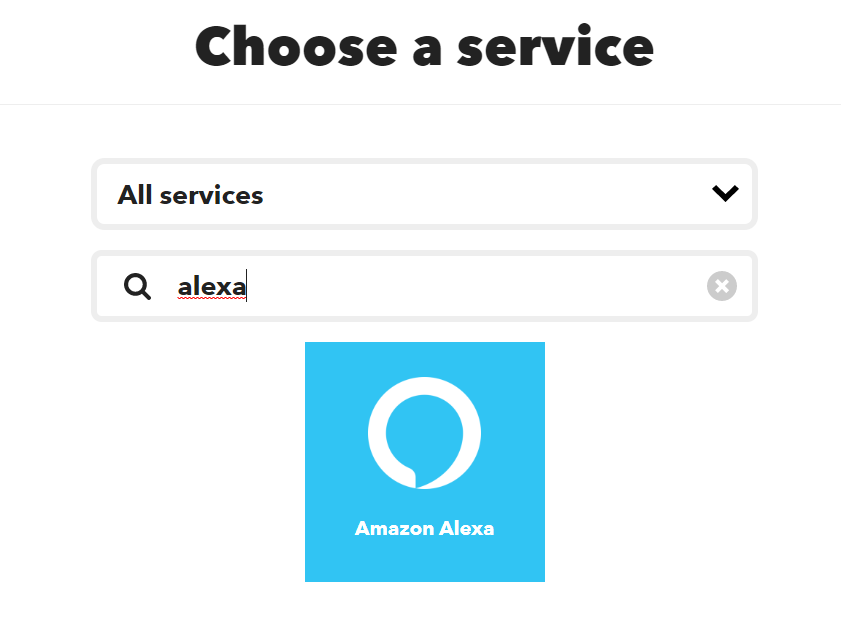
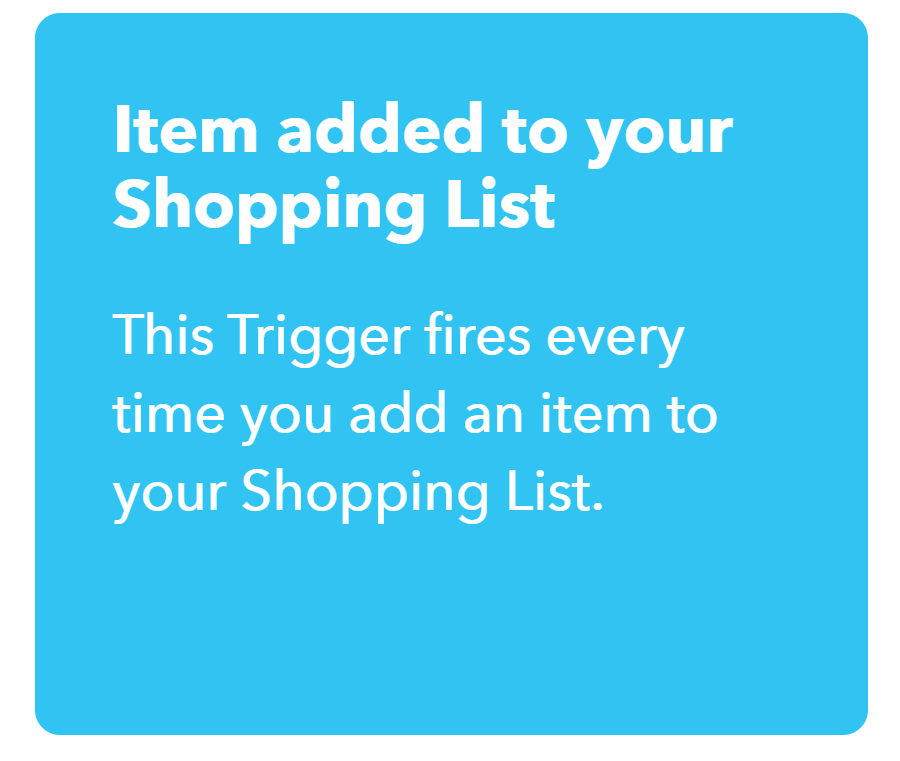
- Click on that and find “Item added to your Shopping List” card – click on it.
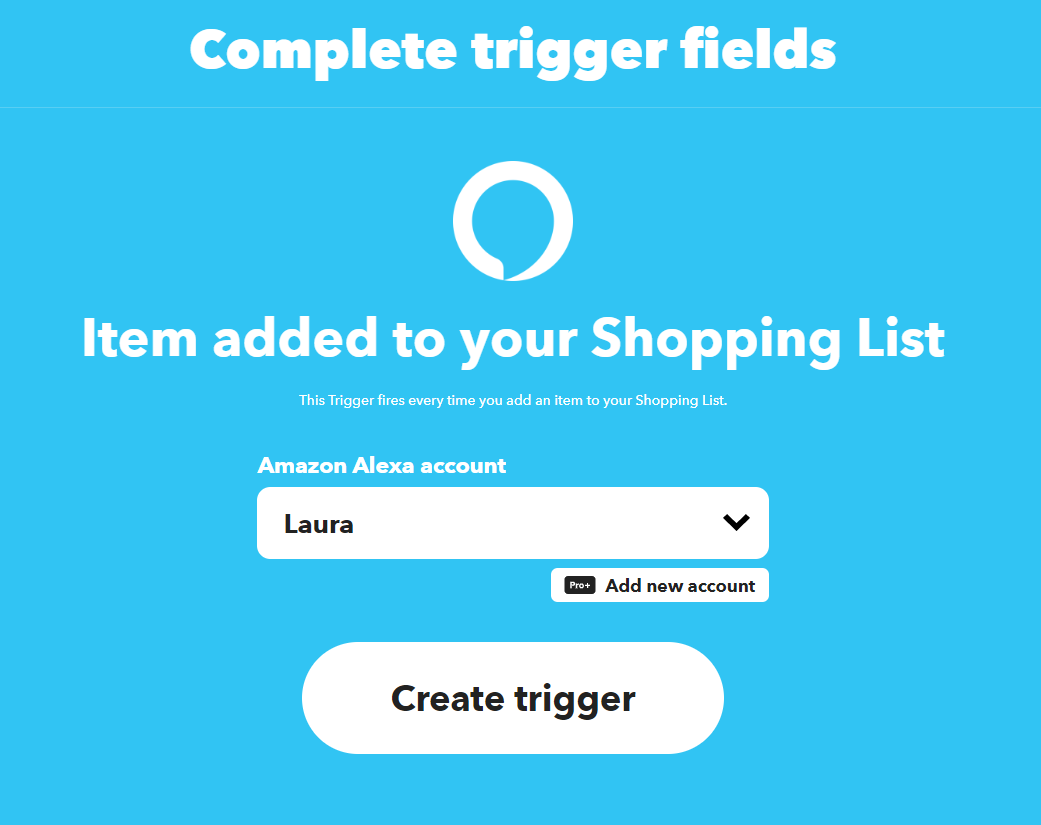
- Connect your Amazon Alexa account, then Create Trigger.
- You should be back to the initial create screen. Head to the “Then that” section, and click on Add.
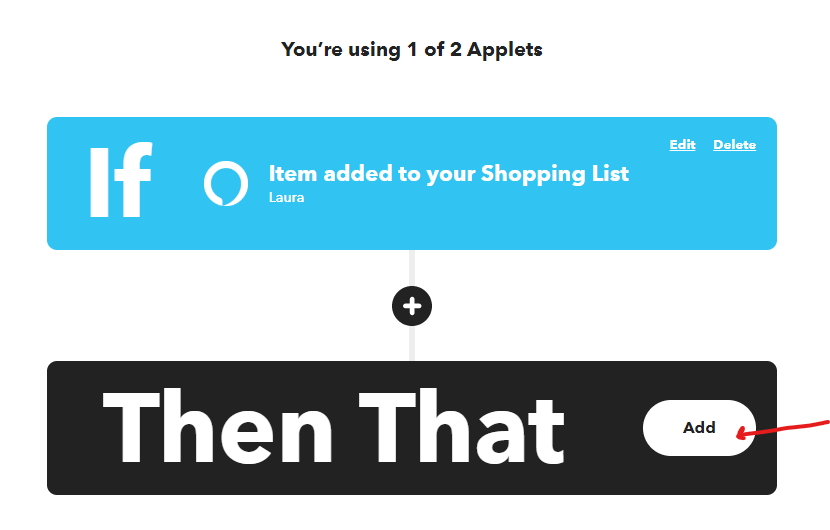
- Find Remember the Milk, select Create a new task.
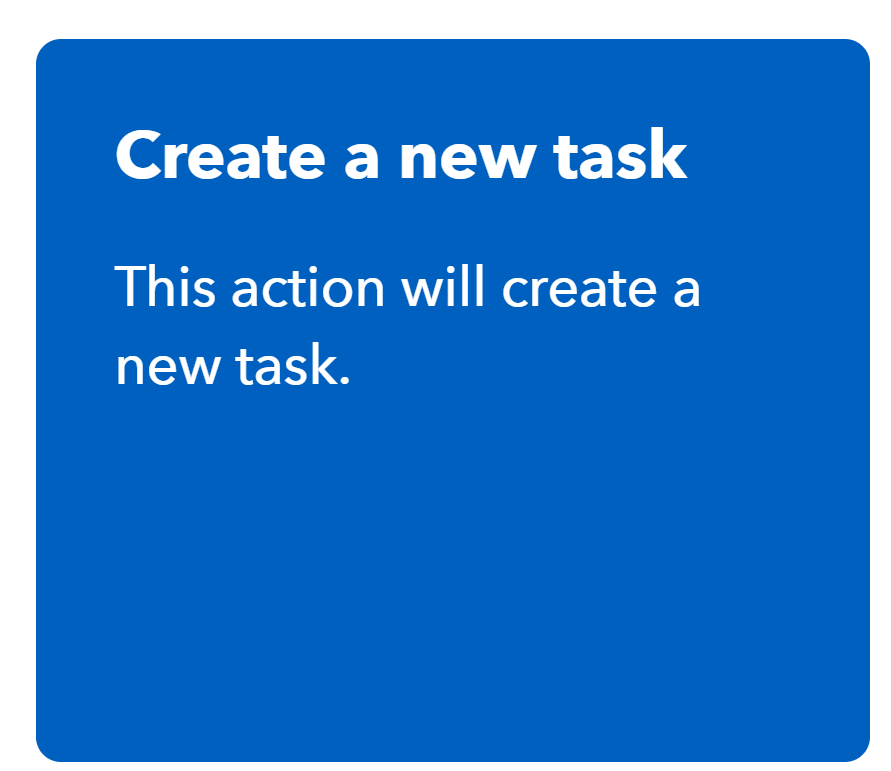
- Connect to your Remember the Milk account.
- Now you’re back at the create screen – hit Continue.
- Here, you’ll have the option to get alerted every time the automation runs. Unless you feel strongly, I’d suggest keep that option off. Hit Finish.
This is the end of the setup in IFTTT. What I don’t particular like about IFTTT is that testing is not part of the setup. In this instance, you’d need to test the automation and troubleshoot it yourself.
Now What?
Go forth and add things to your Alexa shopping list! Anything new will end up in the RTM app.
Maybe you don’t use Alexa outside of your house. In that case, set up another automation for an app you use. Here are other examples:
- Slack to RTM
- Email to RTM
- iOS Reminders/Siri to RTM
- Google to RTM

Leave a Reply